
Install AutomaDoc in Lark
Get AutomaDoc up and running in your Lark workspace in just a few minutes.
Prerequisites
Section titled “Prerequisites”Before you begin, make sure you have:
- ✅ A Lark account
- ✅ At least one Lark Base with data
Installation steps
Section titled “Installation steps”Step 1: Install AutomaDoc from the Lark App Store
Section titled “Step 1: Install AutomaDoc from the Lark App Store”-
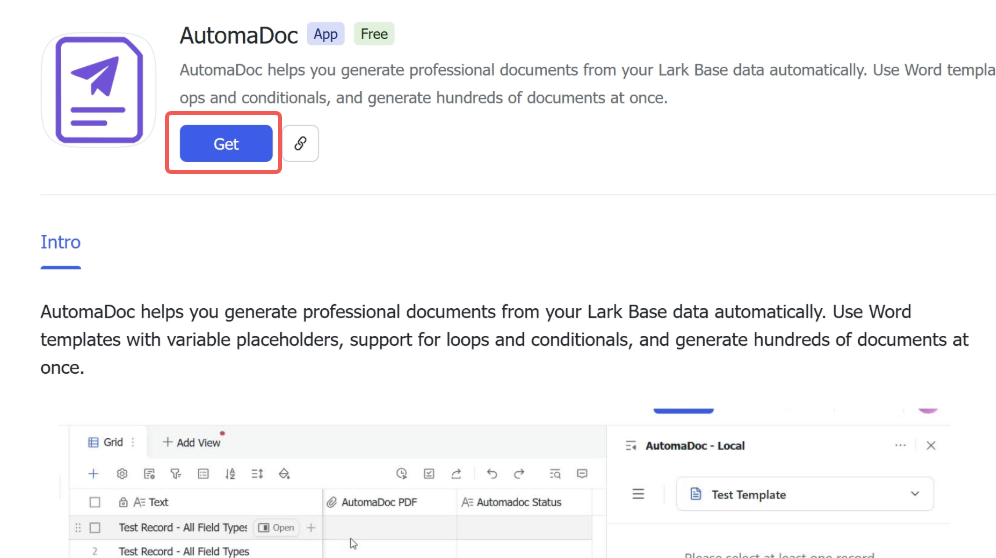
Visit the AutomaDoc app listing.
-
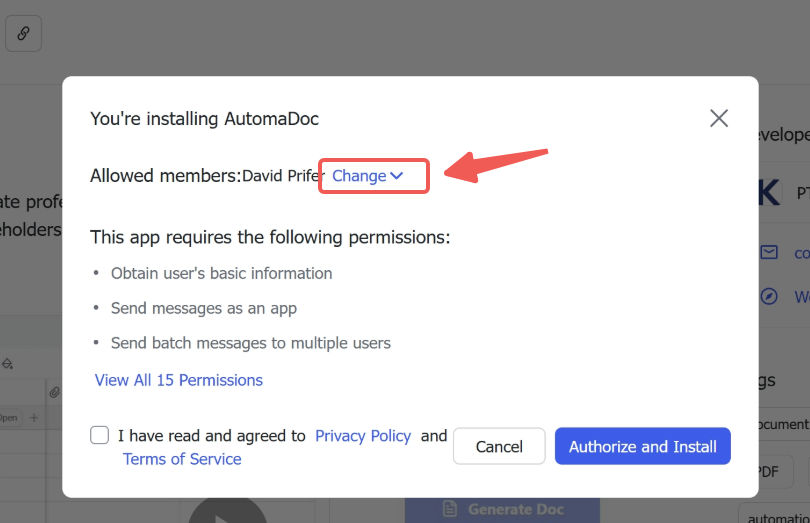
Install AutomaDoc for your company.
-
Install for all users (optional).
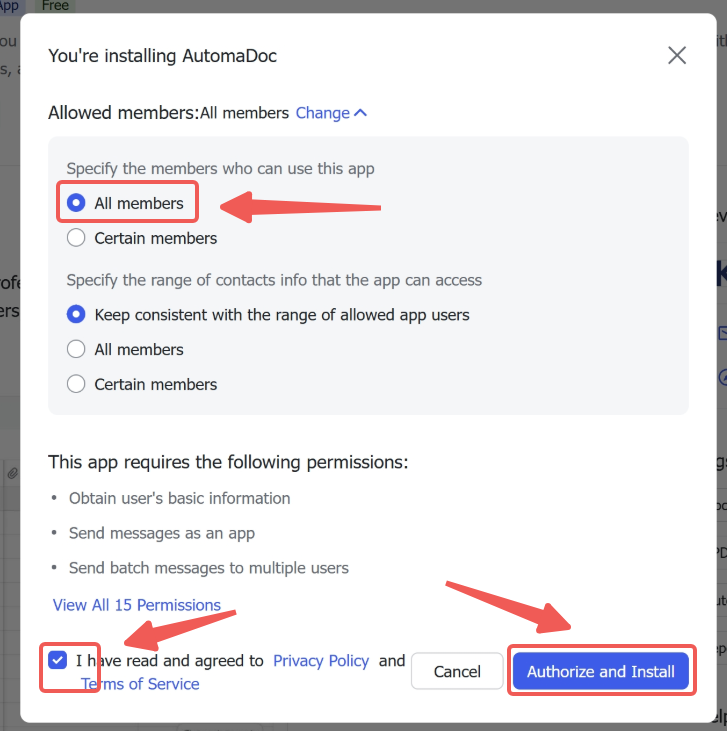
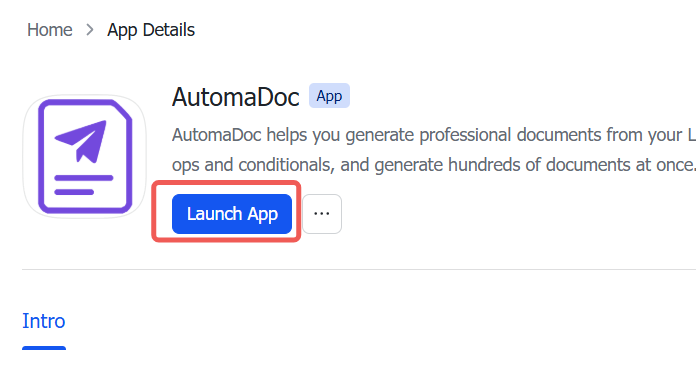
-
Launch the app.
Step 2: Add the AutomaDoc extension from Base
Section titled “Step 2: Add the AutomaDoc extension from Base”-
Go to your Lark Base.
-
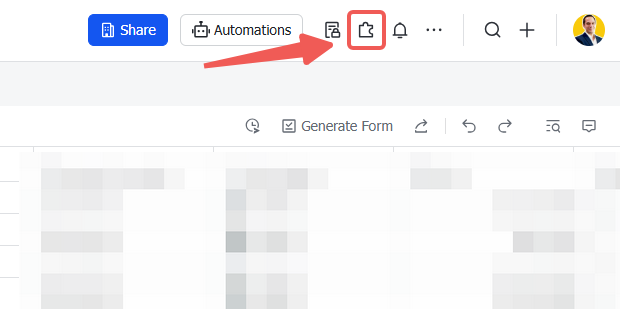
Click the Extensions button (puzzle icon) in the toolbar.
-
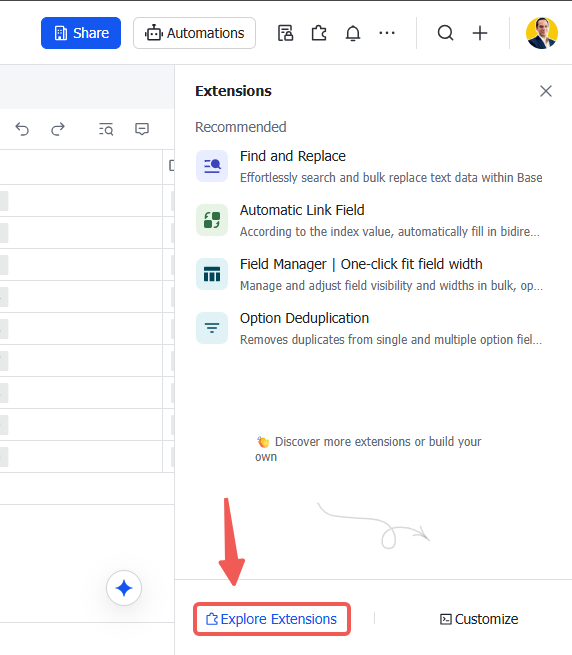
Click Explore Extensions at the bottom of the panel.
-
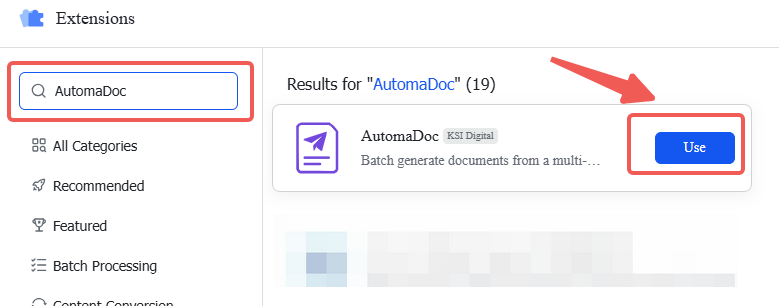
Search for AutomaDoc and click to add it.
Step 3: Open AutomaDoc
Section titled “Step 3: Open AutomaDoc”-
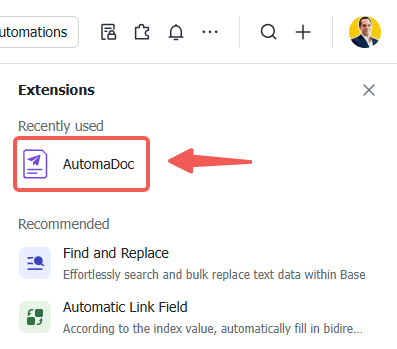
Click the newly installed AutomaDoc.
-
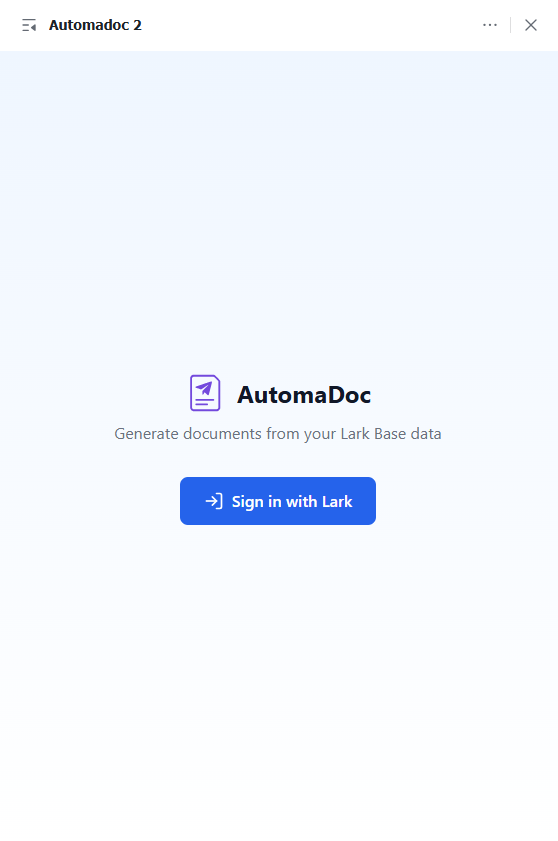
Log in to the application.
The extension at a glance
Section titled “The extension at a glance”Next time, open your Base, click the Extensions button (puzzle icon) in the toolbar and select AutomaDoc from your installed extensions. It has four main pages:
- Generate: the home page where you create documents from your templates
- Template: configure templates, upload files, and set generation options
- Variables: browse all available fields and copy the exact syntax
- More: language settings, documentation links, support contact, and tour restart
New users automatically get a guided tour that walks through the main features. If you dismissed it, you can restart it anytime from the More page → Restart Tour.
Troubleshooting
Section titled “Troubleshooting”Extension won’t load
Section titled “Extension won’t load”Problem: Extension shows a blank screen or error.
Solutions:
- Clear your browser cache and reload.
Can’t see my tables
Section titled “Can’t see my tables”Problem: No tables appear in the extension.
Solutions:
- Refresh the page.
- Check that your base actually contains tables with data.
Permission errors
Section titled “Permission errors”Problem: “Access denied” or permission errors.
Solutions:
- Make sure your Lark account has access to the base.
- Contact your workspace admin to review app permissions.
Can’t upload template
Section titled “Can’t upload template”Problem: Template upload fails.
Solutions:
- Ensure your file is a valid Word (
.docx), Excel (.xlsx) or PowerPoint (.pptx) file, not.doc, a macro-enabled file or another format. - Check the file size: templates over 25 MB are refused.
- Verify you haven’t reached your template limit (2 on Free, 10 once your company has a seat or Pro).
Next steps
Section titled “Next steps”✅ Installation complete! Now you’re ready to:
- 👉 The Base extension: open AutomaDoc in a Base and generate
- 👉 Template syntax: master the placeholder syntax
- 👉 Generating documents: start automating